
To send inventory to a Walmart fulfillment center, convert your SKUs to WFS in Seller Center, create a shipping plan, choose Inventory Transfer Service or self-distribution, label every case and unit to WFS spec, and ship to your assigned facility.
If you’ve shipped to Amazon FBA before, Walmart’s inbound process will feel like visiting a cousin. Same family, different house rules. The broad strokes match: you plan the shipment in a portal, label everything, and send it to a warehouse. But WFS has quirks that trip up FBA sellers every single time, starting with the labels on your products and ending with one decision Amazon never makes you face.
Here’s the whole thing, start to finish, the way it actually works in Seller Center.
First: your SKUs have to be converted to WFS
Walmart won’t accept inventory for a product that isn’t enrolled in WFS. Before you pack a single box, go into your catalog in Seller Center, find the item, and convert it to WFS. If you’ve ever flipped an Amazon listing from FBM to FBA, you know this move. It is the same kind of approval gate as getting ungated in a restricted Amazon category.
The conversion sits in “pending” for a bit, then flips to processed. Give it 10 to 15 minutes and check the activity feed. Nothing else in this guide works until that’s done, because only converted SKUs can go into a shipping plan.
The shipping plan: six steps, and step zero is “don’t skip it”
Walmart’s rule is blunt: no shipping plan, no receiving. Create the plan first, ship second. Inventory that shows up without one gets held up at check-in or sent back. I’ve seen sellers learn this the expensive way, so let’s just say it twice: plan first.
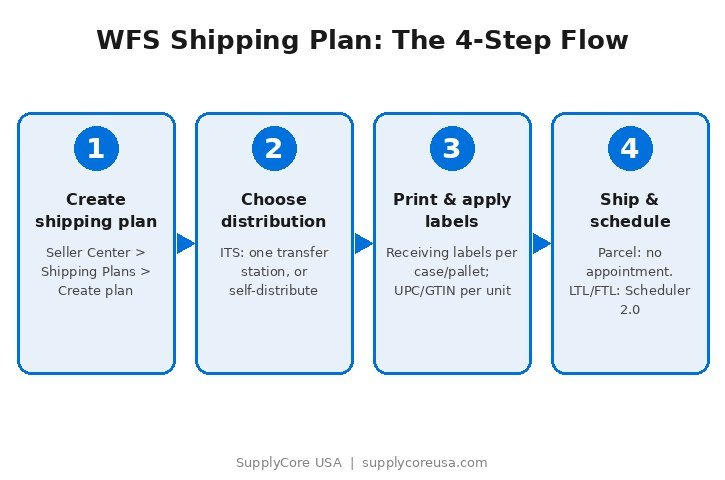
Step 1: Create the plan. In Seller Center, open Shipping Plans and hit Create plan. Shipping from outside the US? You’ll pick between a domestic US origin and Walmart Cross Border Imports here.
Step 2: Add items. Search your catalog or upload a spreadsheet if you’re sending a bunch of SKUs. Enter unit counts and how they’re packed, case-packed or individual units. Take this seriously. Walmart uses these numbers to decide which fulfillment centers get your inventory. Sloppy quantities mean your freight gets routed wrong, and that’s a headache you don’t want.
Quick tip: Seller Center shows suggested quantities based on forecasted demand. Handy as a gut check so you don’t stock out. Not a quota. Don’t treat it like one.
Step 3: Choose distribution. Here’s the part Amazon doesn’t have. Walmart might split your plan across multiple shipments for coverage. When it does, you choose:
- Inventory Transfer Service (ITS): you ship everything to one WFS transfer station, and Walmart fans it out to the right fulfillment centers. One destination, one freight booking, done.
- Self-distribute: you book freight to each assigned fulfillment center yourself.
My take? If this is your first WFS shipment, use ITS. One shipment is dramatically simpler than three, and you can always switch to self-distribute later once you know your volumes and have freight relationships. Self-distribution earns its keep when you’re moving serious volume and want control over exactly where inventory sits.
Step 4: Pick shipping, enter case details. Choose your carrier and shipment type, then punch in master case or pallet dimensions and weight. Walmart’s Preferred Carrier Program will quote you a rate right in the plan (FedEx is the default, and the rates are genuinely competitive). Accept it and move on, or use your own carrier and schedule the pickup yourself.
Step 5: Pickup contact. Name and operating hours for whoever’s at your dock. Skip it if you’re on your own carrier or sending parcel.
Step 6: Review and create. Double-check everything, items, counts, destinations, carrier, then hit Create plan. Walmart spits out an inbound shipment ID and tells you exactly where each shipment goes.
Labels: where FBA sellers mess up most
WFS labeling has two layers, and both have to be right.
The box and pallet labels come from Seller Center. Download them after creating the plan. Every master case and every pallet gets one. Each label carries the WFS shipment ID plus its barcode, your return name and address, the ship-to facility address, box or pallet counts, and the label type: mixed-SKU carton, single-SKU carton, or pallet.
Placement matters. On boxes, stick it left of center on the longest side. On pallets, all four sides, top center, placed square so a forklift driver can read them coming from any direction. Crooked labels on pallets are a small thing that causes real delays.

The unit labels are on you. Every sellable unit needs a scannable UPC (12 digits) or GTIN (14 digits) on its outermost packaging, and it has to scan without peeling off any bags or tape. Add a permanent country-of-origin mark somewhere visible during normal handling.
And here’s the big one, the mistake I see constantly: Walmart does not use FNSKU. There is no FNSKU equivalent. UPC/GTIN only. If you also sell on Amazon, keep those inventory streams totally separate. Amazon prep labels and FNSKU stickers on WFS-bound units will cause problems at receiving. Different warehouses, different labels, no mixing.
Getting it to the dock
Parcel shipments are easy. No appointment needed, ever, whether you use Walmart’s carrier or your own. Hand over the cartons, then drop the tracking numbers into the Shipping Plans page in Seller Center (filter by “Tracking needed”) so you can watch the shipment move.
LTL and FTL are a different animal. The carrier must book a delivery appointment through Walmart’s Scheduler 2.0, and the carrier needs a Retail Link account to do it. At the gate, the driver shows the confirmation number. The truck has to land within 45 minutes of its slot, and live-unload LTL/FTL has to arrive on pallets. If the plan falls apart, cancel in Scheduler 2.0 at least 24 hours ahead.
Do the labels and packing right, and Walmart usually checks inventory in within two business days of arrival. You can watch it flip to available-to-sell in Seller Center.
The mistakes that actually get shipments rejected
- Shipping without a plan. Still the number one cause of receiving disasters. Plan first, always.
- Fudging the quantities. Wrong unit counts or pack configs route your freight to the wrong buildings.
- Bad labels. Missing receiving labels on cases, unscannable UPCs on units. Print extras. A 30-cent label reprint beats a rejected pallet.
- Amazon labels in a Walmart box. FNSKU stickers don’t belong in WFS. Separate your streams.
- Blowing the appointment. No Scheduler 2.0 booking, or a truck outside its window, and you’re sitting at the gate.
- Shipping to the wrong building. Only ever ship to the facility assigned to your inbound order, even if another one is closer. Walmart’s routing, not yours.
Coming from FBA? Here’s your cheat sheet
- Placement: WFS gives you a choice, ITS or self-distribute. Amazon just tells you where to send it.
- Unit labels: WFS wants UPC/GTIN. Amazon wants FNSKU. Never cross the streams.
- Default carrier: Walmart’s program runs on FedEx. Amazon’s partnered carrier is UPS.
- Appointments: WFS needs Scheduler 2.0 for LTL/FTL, nothing for parcel. Amazon runs its own receiving appointment system.
- Prep: Amazon killed its own prep services in 2026, so FBA sellers now handle prep themselves. Walmart never offered prep in the first place, so WFS sellers have always owned their unit prep and labeling. If you survived the FBA prep change, WFS prep will feel familiar. Selling on both? Run your numbers through our free Amazon FBA calculator before splitting inventory across the two marketplaces.
Frequently asked questions
Do I need a shipping plan for every WFS shipment?
Yes. Every single one. No plan means delays at check-in or an outright rejection.
ITS or self-distribute, which should I pick?
ITS for simplicity: one transfer station, Walmart handles the rest. Self-distribute when you have the volume and freight relationships to justify controlling destinations yourself.
Do parcel shipments need a delivery appointment?
No. Only LTL and FTL need Scheduler 2.0 appointments. Parcel never does.
What labels does WFS actually require?
Walmart-generated receiving labels on every case and pallet (shipment ID, barcodes, addresses), plus your own scannable UPC or GTIN on every unit. No FNSKU, ever.
How long until my inventory is available to sell?
Typically within two business days of arrival, assuming packing and labeling are correct.
Can my supplier ship straight to the fulfillment center?
Yes, and a lot of sellers do exactly this. The shipping plan has to exist first and everything must meet WFS label spec. A good wholesale supplier ships WFS-ready from their own dock, which cuts out your warehouse stop entirely.
Selling on Walmart and want inbound handled for you? SupplyCore USA sources authentic wholesale inventory and ships it WFS-ready: labeled to spec, with shipping plans coordinated. Get a free consultation to talk through your catalog and fulfillment strategy.